
Health dashboard
Your dashboard has always shown which control activities are done. It has not shown how they got done. Two activities can both say Completed: one was approved the first time and closed on time, the other was rejected twice and approved a week after its due date.
In version 2.50 we brought Control Health to the activity list. With this release, Control Health gets its own Health tab on the dashboard, so you can see where your control work runs smoothly and where it gets stuck, across all your programs at once.
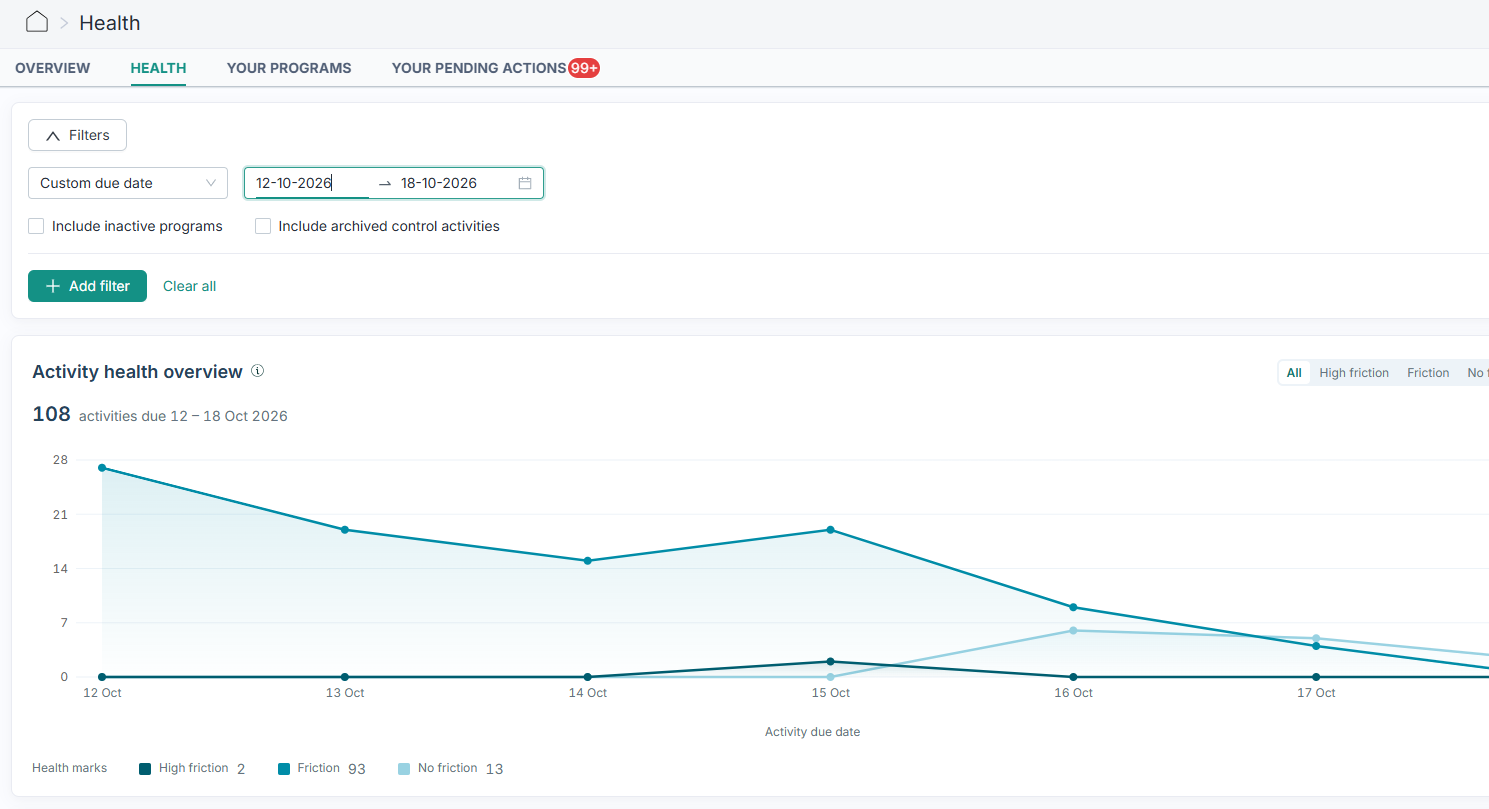
The Health tab has three parts:
- Activity health overview: shows how many activities had "No friction", "Friction" or "High friction" over time, grouped by due date. Use it to spot a difficult month or to check that a change you made is working.
- Friction breakdown: counts friction by type: "Overdue", "Rejected" and "Reopened". Mostly overdue usually points to timing or workload, while many rejections or reopens usually point to quality, for example unclear instructions or missing evidence.
- Status breakdown of ongoing activities: lists every program with unfinished activities, how many are overdue, how late they are and whether they are waiting on the responsible, the reviewer or the second reviewer.
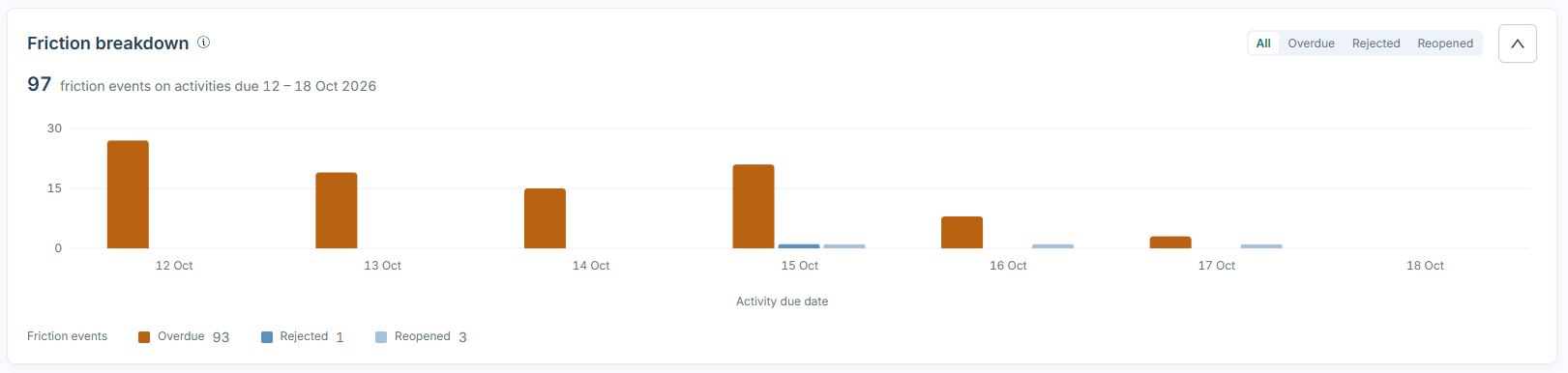
Every chart point and every number can be clicked to open the activities behind it in the activities list. Filter the dashboard by due date period, control program, control tag or entity, and the charts and table update together.
This makes the dashboard useful for a weekly check-in on who to follow up with, a monthly review of whether friction is going up or down and for audit or management reporting on a past quarter or year.
Organization admins and anyone with access to at least one control program or control entity can open the Health tab. You only see activities you have access to.
Learn more: How to overview control health on the Health dashboard
Time to due column and filter in the Activities list
Until now, you could filter the activities list by overdue status, but not by how long an activity has been overdue or how soon it is due. An activity two hours late looked the same as one two months late.
The new Time to due column and filter show exactly how much time is left, or how late an activity is:
- Chase the oldest first: find activities that have been overdue for a week or more and follow up before they become an audit finding.
- Act before it is late: see what is due in the next few days and send a reminder while there is still time.
- Catch new delays early: find activities that went overdue in the last day, while they are still easy to fix.
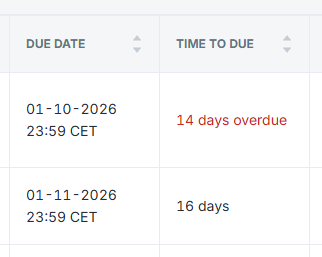
The "Time to due" column sits next to "Due date" in the activities list. Upcoming activities show the time left, for example 2 days, and overdue activities show in red, for example 3 days overdue. Click the column header to put the most overdue activities at the top.
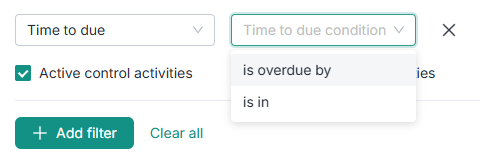
To filter, click +Add filter, select "Time to due" and choose whether the activity is overdue by, or is due in, at least or at most a number of hours or days. For example, “is overdue by at least 7 days” shows everything that has been overdue for a week or more.
Tip: On the Health dashboard, the numbers in "Overdue, under 7 days" and "Overdue, over 7 days" open the activities list with the Time to due filter already set.
Learn more: How to see and filter activities by time to due
Extend due date
Sometimes an activity needs more time than planned. A key person is away, an auditor asks for additional evidence or a process upstream is delayed. Until now, the due date of an activity could not be changed once the activity was created.
Admins and anyone with edit access to a control program can now extend the due date of an activity, with a clear record of what the original deadline was:
- From the activities list: extend a single activity or select several and extend them in bulk.
- From the activity itself: extend the due date directly from the activity view.
- When reopening an activity: Impero asks whether you also want to extend the due date, so both happen in one action. The reopen email sent to the responsible includes the new due date.
- Previous and new due date side by side: the activity shows the previous due date next to the new one, so it is always clear that the deadline was moved.
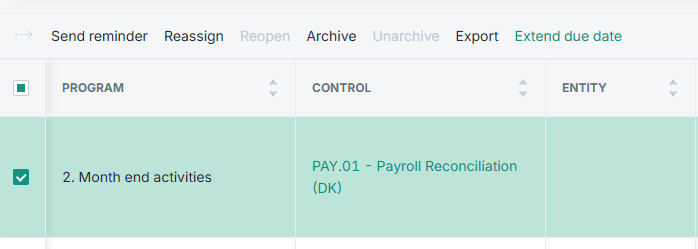
Note: Completed and archived activities can’t have their due date extended, and once a due date has been extended, it can’t be moved to an earlier date again.
Tutorial: How to extend the due date of an activity
Learn more: How do I extend the due date for an activity?
Note: Extend due date is switched on per organization. If you would like to use it, please reach out to support@impero.dk or your CSM.
Entity management: update entity access on users
Organizations using Entity Management can now see and manage a user’s entity access directly on the user from the User management.
- New Entities tab: each user now has an Entities tab showing their access rights to controls and risks across entities.
- Remove or replace across entities: remove a user from an entity, or replace them with another user on several entities in one action. This makes it much faster to handle someone changing role or leaving the organization.
Control policies
Some settings need to apply to every control in the organization, not only the ones where a control builder remembers to switch them on. Control policies let your organization decide how the following two control settings behave across all controls.
1. Require login for responsible and reviewers
- Off: today’s behaviour. Control builders decide per control.
- On by default: the setting is switched on for new controls. Control builders can still turn it off.
- On for every control: login is required on all controls. This applies when controls are created, duplicated, edited, bulk assigned and bulk imported.
2. Segregation of duties
- Off by default: this is the default behaviour. Control builders decide per control.
- On by default: segregation of duties is switched on for new controls. Control builders can still turn it off.
- On for every control: segregation of duties is required on all controls. New controls, copied control programs and bulk imports get it switched on, and a save that breaks the rule is refused.
Before segregation of duties is enforced for every control, Impero checks all existing controls. If any control has the same person as both responsible and reviewer, those controls need to be updated first. Once they are, segregation of duties is switched on for all existing controls. Activities that already exist are not changed.
Note: Control policies is a feature that currently is set up by Impero on request. If you would like to have them enabled, please reach out to Impero Support. A settings page where admins can manage control policies themselves is on the way.
Pull attachments out via the Impero public API
Evidence uploaded to control activities often needs to be used outside Impero, for example when testing it or bringing it into your own review and reporting tools. Until now, attachments had to be downloaded from each activity by hand.
The new Attachments API endpoint lets you pull attachments from activities through the Impero public API, so you can work with the evidence directly in your own processes and tools.
Learn more: How do I create an API key?
Additional improvements
Updated tables and filters in the User management
The user management pages now use the same tables and filters as the rest of Impero, so finding and filtering users works the way you already know from other lists.