
Two activities can both have the status Completed and still have very different histories. One activity was submitted, approved and closed on time. The other activity was rejected twice and approved a week after its due date. The Health dashboard tells these two apart.
Why is the Health dashboard useful?
The Health dashboard is especially useful if you are a control manager, an Administrator, or anyone who is responsible for the progress of one or more control programs, or if you need to report on control work to management or auditors. It helps you to:
- Catch problems early: see overdue and rejected work while you can still act on it, instead of after the period has closed.
- Know who to follow up with: see which control programs have overdue work, and whether that work is waiting on the responsible or on a reviewer.
- See the direction of friction: check whether the amount of friction is going up or down, and report it to management.
- Prepare for audits faster: review a past quarter in minutes, and then open the activities behind any number you see.
Where can I access the Health dashboard?
- Go to the Dashboard.
- Open the "Health" tab.
Note: The Health tab is available to organization admins and to users who have access to at least one control program or control entity.
How do I choose what I look at?
Use the filters at the top of the Health tab. When you change a filter, the charts and the table on the page update together.
- Due date: select the current or the previous week, month, quarter or year, or select "Custom due date" to set your own date range. The Health dashboard includes the activities that have a due date within the selected time range. For example, if you select "Previous quarter", the dashboard shows the activities that had a due date within the previous quarter.
- Add filter: narrow the view further to specific control programs, control tags or entities. Entities only appear in the list of filters if your organization uses entities. If you select several tags, an activity must have all of the selected tags to be included.
- Include inactive programs and Include archived control activities: tick off on one or both of them if you also want to include inactive control programs or archived control activities.
Your filters are saved in your browser, so the Health dashboard opens the way you left it the next time you visit it in the same browser.
What does the Health dashboard show?
The page is split into three sections, and it goes from the overall trend, to what is causing friction, to the work that needs action now.
Activity health overview - is it getting better or worse?
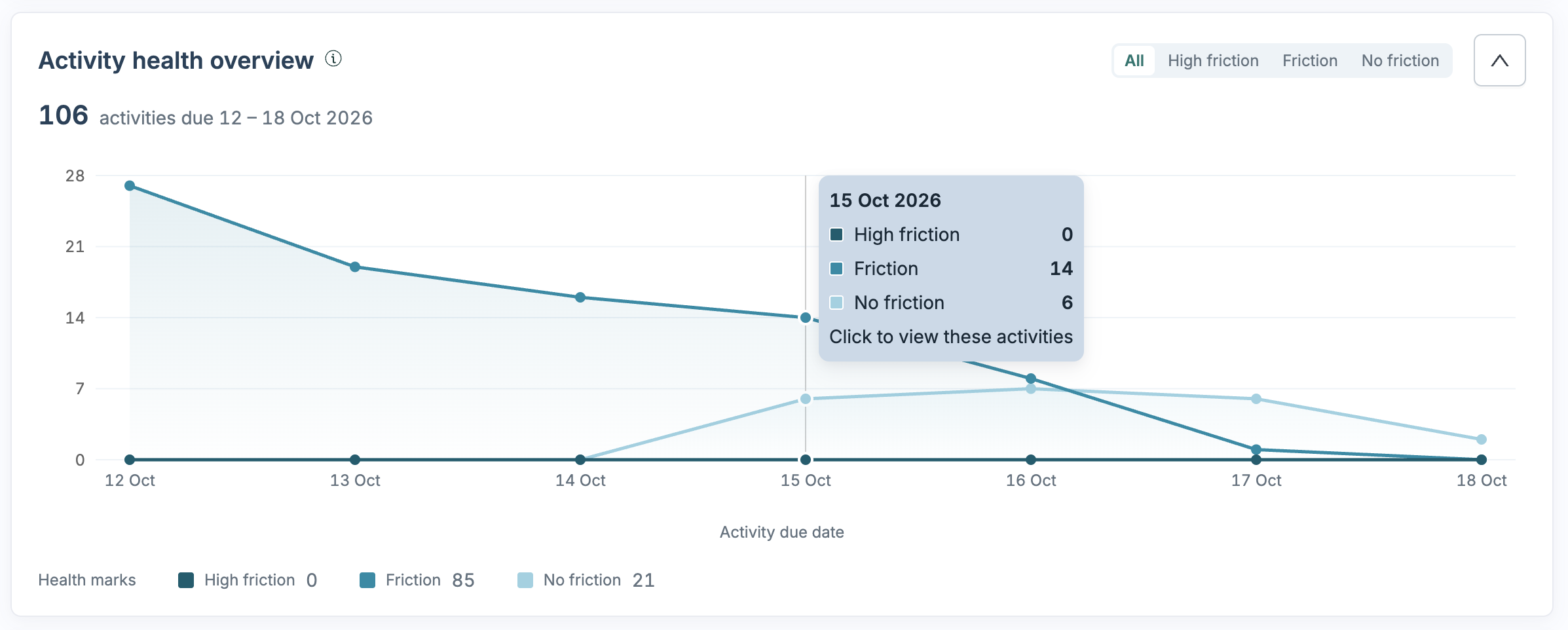
This chart shows how many activities had no friction, friction or high friction across the selected period, grouped by due date. Use it to spot a difficult month, or to check that a change you made is working.
- Use the tabs "All", "High friction", "Friction" and "No friction" to focus on one health mark.
- Hover over a point in the chart to see the numbers.
- Click a point in the chart to open those activities in the activities list.
Friction breakdown - what kind of friction is it?
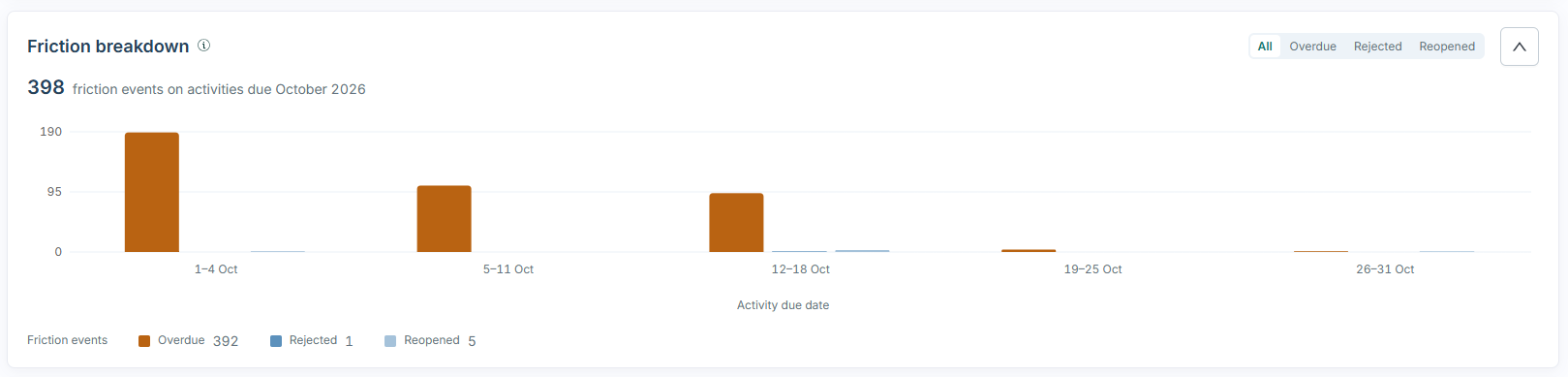
This chart counts friction by type: Overdue, Rejected and Reopened. If most of the friction is of the type Overdue, the cause is usually timing or workload. If there are many rejections or reopens, the cause is usually quality, for example unclear instructions or missing evidence.
- The bars count events, not activities. An activity that was rejected twice counts twice.
- Open the "Overdue", "Rejected" or "Reopened" tab to split each bar into activities that are still in progress, which you can still act on, and activities that are completed, which are history.
Status breakdown of ongoing activities - where is work stuck right now?
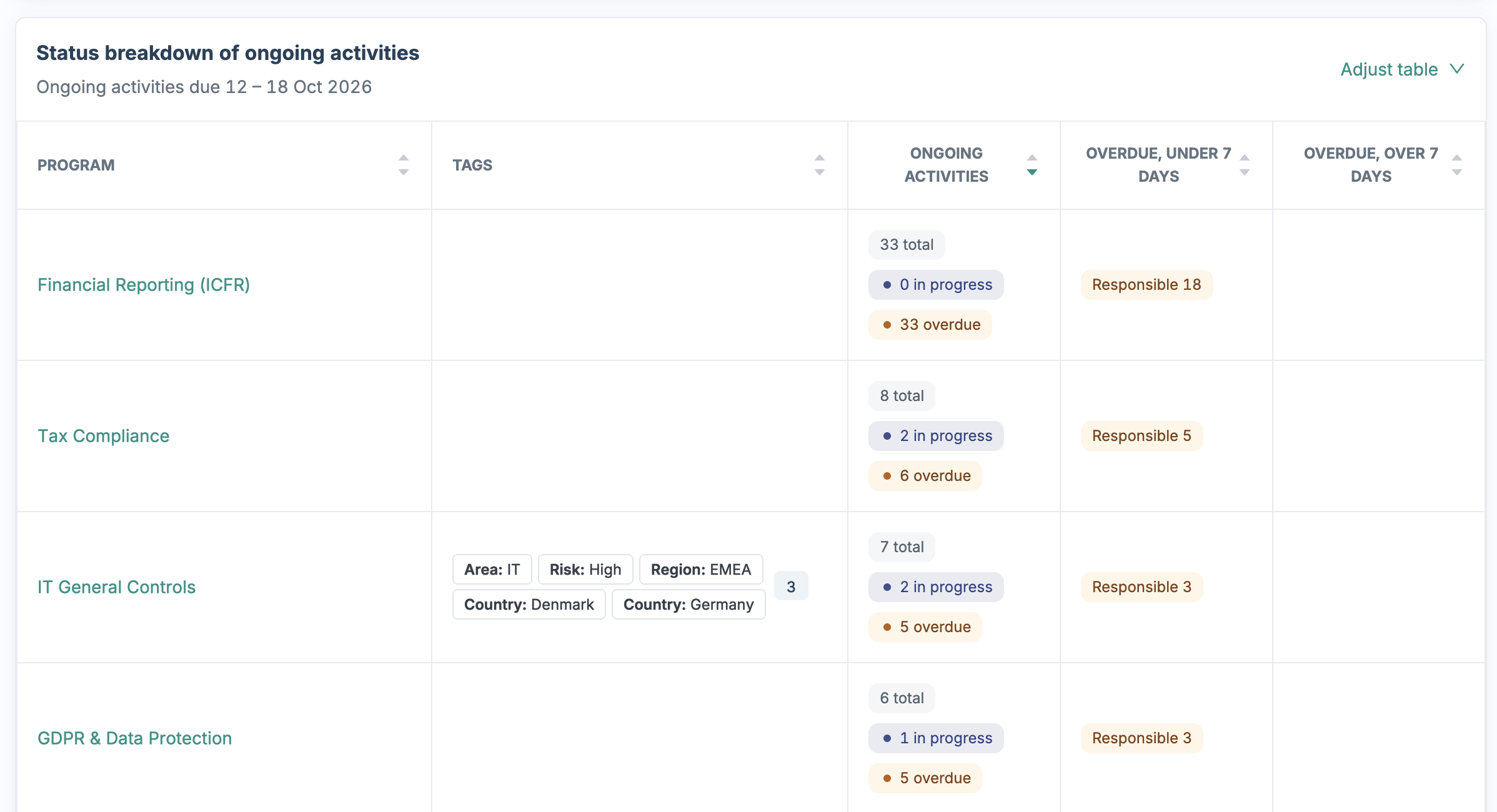
This table lists every control program that has unfinished activities with a due date within the selected time range. The table has these columns:
- Ongoing activities: how many activities are open in total, how many of them are in progress, and how many of them are overdue.
- Overdue, under 7 days and Overdue, over 7 days: how late the overdue activities are, and who they are waiting on: the Responsible, the Reviewer or the Second reviewer.
Examples of how to use Health dashboard in practice
Weekly check-in
-
Keep the due date filter on "Current month".
- In the status breakdown of ongoing activities, look at the column "Overdue, over 7 days". The role in that column tells you who to follow up with.
- Click the number to open the list of activities.
Monthly review
- Set the due date filter to "Previous month".
- In the Activity health overview, check whether the number of activities with high friction is going up.
- In the Friction breakdown, check whether the friction is about timing or about quality.
- Add a filter for one control program to compare it with the others.
Audit or management reporting
- Set the due date filter to "Previous quarter" or "Previous year", and add a filter for the control programs that are in scope.
- Use the trend in the Activity health overview to show the direction of travel.
- Click a point in the chart to see exactly what happened in those activities.
A couple of things worth knowing
- Everything is based on the due date of the activity. A rejection that happened last month on an activity that is due this week counts in this week.
- Past periods can change. If an old activity is reopened today, the health mark of that activity changes from No friction to Friction. The Health dashboard shows today's view of the past, not a frozen snapshot.
- The status breakdown only includes activities with a due date within the selected time range. To see older activities that are still overdue, widen the time range.
- Clicking through does not change your saved view. When you click a number or a point to open the activities list, the activities list opens as a temporary view.
- Health also appears in the activities list. The Health column in the activities list shows the health mark of each activity and the reason, for example "Overdue" or "Rejected 2×". Click the health mark to see the full timeline of the activity.
- Access limited to certain users. Only users with Administrator roles or anyone who has access to at least one control program or control entity, can open the Health tab. You only see the activities that you have access to.
Learn more: