
Why is this useful?
Sometimes a deadline needs to move. Information from a third party may be delayed, the responsible may be absent, or the scope of a control may have changed. Extending the due date can help avoiding activities to become overdue when there is a legitimate reason for the responsible or the reviewers to need more time.
Note: The option to extend due dates has to be enabled for your organization first. If you don't see "Extend due date" in the activities list, contact your Customer Success Manager or support@impero.dk.
Where can I make use of the functionality?
As an Administrator or as a user with Edit access to the control program, you can extend the due date of a given activity from two places in the platform:
- From the activities list
- In the activity itself
How do I extend the due date from the activities list?
- Open the activities list.
- Select the activities you want to extend the due date for.
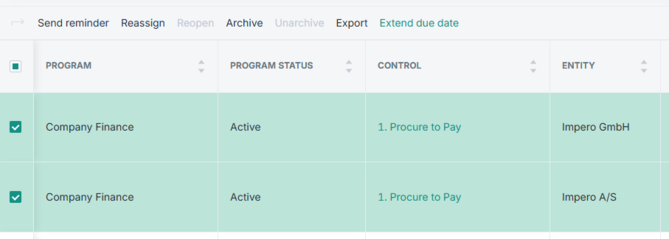
- Click "Extend due date".
- This opens a pop-up window. Choose the new due date here in the calendar. You can only choose a date that is later than the current due date of the activity. If you have selected several activities, you can only choose a date that is later than the latest due date among the selected activities.
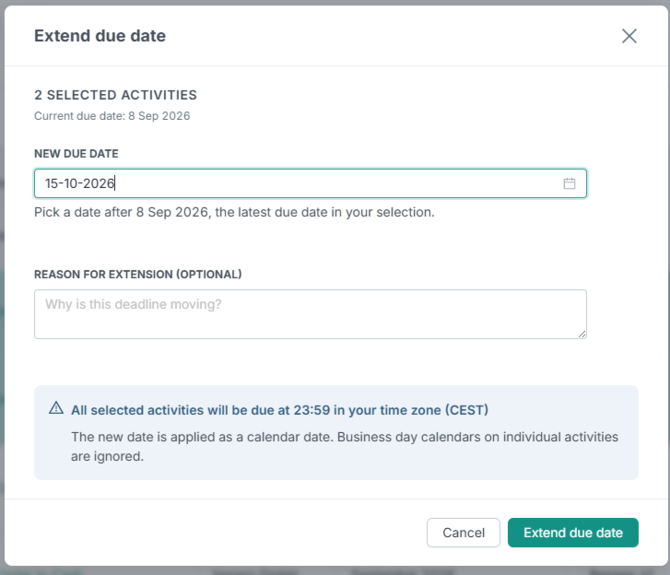
- If relevant, write a reason for the extension. The reason is included in the email that the responsible and the reviewers receive.
- Confirm the extension by clicking the green "Extend due date"-button. A message at the top of the page confirms that the due date has been extended, and the new due date is shown in the activities list.

How do I extend the due date from an activity?
- Open the activity.
- Click "Extend due date" in the bar at the top of the page.

- If relevant, write a reason for the extension. The reason is included in the email that the responsible and the reviewers receive.
- Confirm the extension by clicking the green "Extend due date"-button. A message at the top of the page confirms that the due date has been extended, and the new due date is shown in the activity.
What happens when I extend the due date of an activity?
- The due dates for the responsible and the reviewers move as well: the due dates for the responsible and for each reviewer are moved by the same number of days as the final due date of the activity, so the amount of time the responsible and the reviewers have for their part of the activity remains the same.
- The responsible and the reviewers receive an email: the email shows the new due date, the previous due date, who extended the due date and the reason, if a reason was written.
- The date extension is shown in the activity log: the activity log of the activity shows that the due date was extended, together with the previous due date and the new due date.
A couple of things worth knowing
- Only users with certain roles can extend due dates: Administrators and users with Edit access to the control program can extend the due date of an activity.
- Completed and archived activities can't be extended. If you have selected a list of activities in the activities list that include either a completed activity or an archived activity, the option to extend the due date is greyed out and not actionable. When you open a completed activity or an archived activity, the "Extend due date" button is not shown at the top of the page.
- All selected activities get the same new due date. If you extend the due date of several activities at once, every selected activity gets exactly the date you choose in the calendar. The activities are not each moved by a number of days.
- An extended due date can't be moved back. Once the due date of an activity has been extended, the due date of that activity can't be changed to an earlier date again.
- The business days calendar is not taken into account. The new due date is exactly the date you choose in the calendar, regardless if the date is considered a business day in your organisation or not.
Learn more: