
Why is it useful to view the timeframe to and after a due date?
- Chase the oldest first. Find activities that have been overdue for a week or more and follow up before they become an audit finding.
- Act before it is late. See what is due in the next few days and send a reminder while there is still time.
- Catch new delays early. Find activities that went overdue in the last day, while they are still easy to fix.
How to filter the activities list by time to the due date
- Open the activities list and click "+Add filter".
- Select "Time to due".
- Choose a condition:
- Is overdue by: activities that are past their due date.
- Is in: activities that are not due yet.
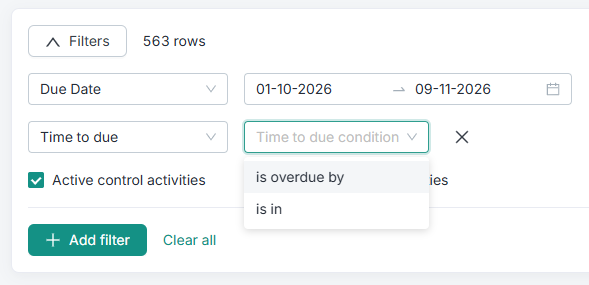
- Choose "at least" or "at most", enter a number and pick "hours" or "days".

The filtered activity list updates straight away, and the filter is kept the next time you open the activities list, like your other filters.
How to sort the activities list by time to due date
- Open the activities list
- Click on the "Time to due" column to sort descending or ascending
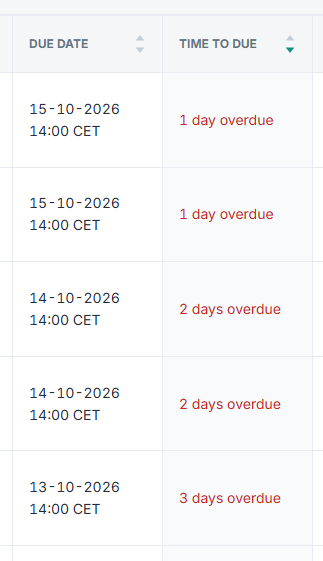
If it's under a day, the time is shown in hours. From one day up to 30 days it is shown in days, and from 30 days it is shown in months. The time is rounded down, so an activity due in 1 day and 20 hours shows as 1 day.
Good to know
- Only open activities match. Completed activities never match the filter, even if they were completed late. To find activities that were completed late, filter Status by Completed after due date.
- It works within your Due date filter. The Due date filter decides which activities are in the list, and Time to due narrows them down.
- Time is counted to the activity’s due date, the date in the "Due date" column. An activity can be overdue on an earlier step, for example the responsible’s, while its due date is still ahead. Time to due then shows the time left until the due date.
Learn more: