
The Attachments API lets your systems download the files attached to control activities and risks, such as the evidence a control responsible uploaded to a task.
The Attachments API needs to be enabled for your organisation before you can set it up. Please contact your Customer Success Manager.
When do I need an API for attachments?
Until now, the Impero API could tell you that a control activity had a file attached, but it could not give you the file itself. To collect evidence for an audit, someone had to open each activity in Impero and download the files by hand.
With the Attachments API, a 3rd-party system, such as your document management system, data platform or audit tool, can collect the files for you. Here are some examples:
- Audit evidence: collect every file for an audit period in one automated run, instead of downloading them one by one.
- Archiving: keep a copy of your evidence in your own document management system.
- Reporting: link each control activity to the files that support it, for example in Power BI.
Save time, avoid manual downloads and give your auditors the evidence, not just the status!
How to set up API for attachments
Very important: The following requirements need to be met to download attachments:
- The Attachments API is enabled for your organisation.
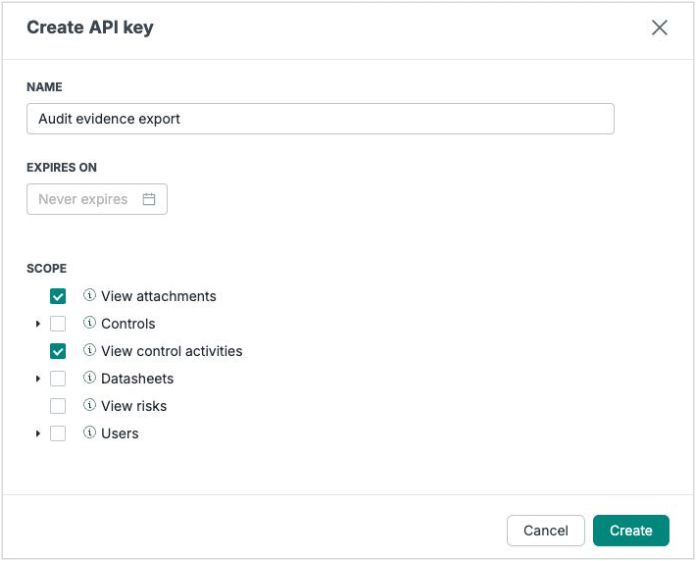
- Your API key has the View attachments scope. Existing API keys can’t be changed, so create a new key and delete the old one if needed.
- Your API key ia also has scoped for View control activities and/or View risks, so it can find the files.
- You use version 2 of the API (/public-api/v2/).
NB! The API key has access to the same data as the user creating the key. It only finds files on control activities and risks that the user can see in Impero.
Note: Here is a set-up example using an API testing software. Please consult your IT team to connect Impero with the systems where you would like to store the files.
Example: fetch one file using Postman
- Generate an API key in your Impero environment: Read here. Under Scope, tick View attachments and View control activities (and View risks if you need files from risks).
- Find the attachment ID. In the 3rd-party system, enter the following information to receive your control activities:
- Select the GET command.
- Enter the URL in this format: https://orgname.impero.com/public-api/v2/control-activities
- Choose X-Api-Key as the type of key and enter the API key you generated in your Impero environment.
- Click Send. In the Body, file upload tasks list their files like this:
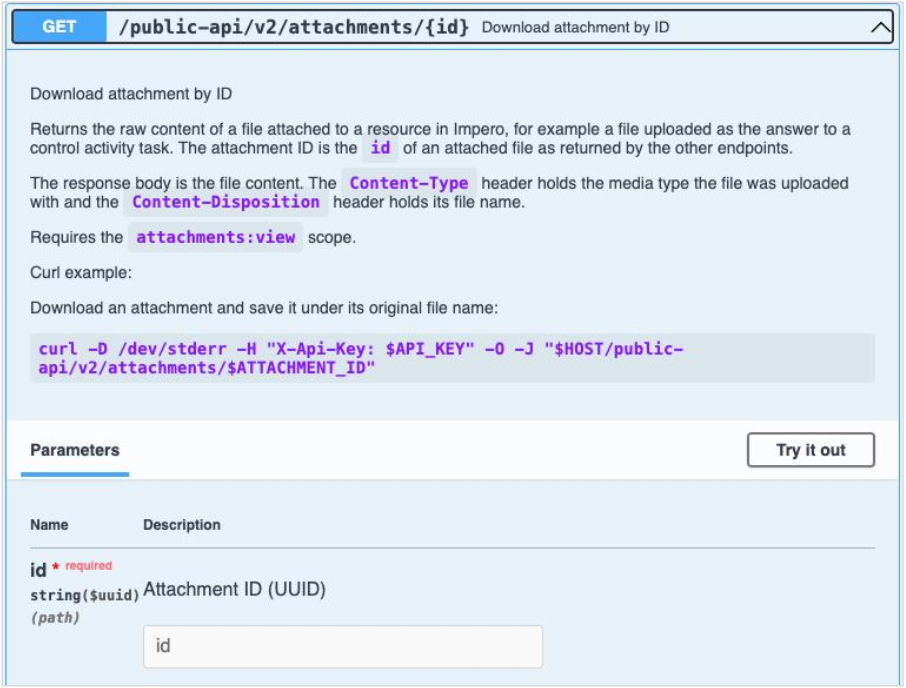
- Download the file. Start a new request:
- Select the GET command.
- Enter the URL in this format: https://orgname.impero.com/public-api/v2/attachments/attachmentID, using the id you copied as attachmentID.
- Choose X-Api-Key as the type of key and enter your API key, as above.
- Click Send. Impero returns the file exactly as it was uploaded, with its original name and file type. Most API testing tools let you save it as a file, e.g. Send and Download in Postman.
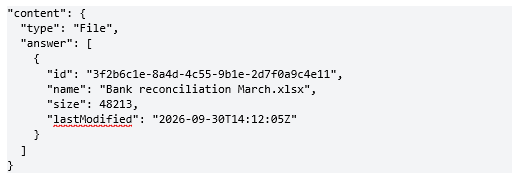
Copy the id of the file you want to download. On risks, file fields list their files in the same way.
Tip: Orgname is the first part of your Impero environment domain, e.g. yourcompany in yourcompany.impero.com.
Tip for developers: the same download with curl, saving the file under its original name: 
Read our API documentation for all details. Select Impero API - v2 in the top-right corner.
What do I get for each file?
- id: the attachment ID. Use it to download the file.
- name: the file name, e.g. Bank reconciliation March.xlsx.
- size: the file size in bytes.
- lastModified: the date and time the file was uploaded.
- One file per request. To download many files, loop through their IDs. Each download counts towards your organisation’s API rate limit (by default 30 requests per 60 seconds). Please contact support if you need a higher limit.
- Deleting an API key stops access straight away.
- If a download doesn’t work, check the error code:
Good to know
- One file per request. To download many files, loop through their IDs. Each download counts towards your organisation’s API rate limit (by default 30 requests per 60 seconds). Please contact support if you need a higher limit.
- Deleting an API key stops access straight away.
- If a download doesn’t work, check the error code:
401: the API key is missing or not valid.
403: the API key doesn’t have the View attachments scope, or the Attachments API isn’t enabled for your organisation.
404: there is no file with that ID, e.g. because it was deleted.
Note: Please reach out to your Customer Success Manager or via support@impero.com if you need any assistance.